Sprites
Finally, Sprites!
It's finally time to start drawing some sprites!
What would games be without our happy little videogame characters, running around, gathering coins, and generally being a nuisance to all the bad guys.
The Symbol command of GotoJSE lets us load image "data" into our programs, but this is one of those commands that we probably shouldn't be writing ourselves.
Instead, we'll use GotoJSE's built in Image Editor to create these lines of Symbol data.
Let's open up our project that we crafted in the previous chapter.
// My Game
// by Mr Green
// Created 2025/12/16

// Main Loop
GameRun=0
Repeat
  If GameRun==0 then Gosub .StartScreen
  If GameRun==1 then Gosub .InGame
Flip
Forever


// This is our Title screen
.StartScreen
CLS
ResetDraw

  SetFontSize 32
  Text 320,240,"Title Screen!",1
  SetFontSize 16
  Text 320,360,"Press Fire to Play",1

  If GamePad(ButtonA)
    Gosub StartGame
    GameRun=1
  Endif
Return


// This prepares our game when the A Button is hit
.StartGame
Score=0

Return


// This is our ingame loop
.InGame
CLS
ResetDraw

  SetFontSize 32
  Text 320,240,"Ingame!",1

  If GamePad(ButtonStart) then GameRun=0
    // We can hit the Return key to quit

  SetFontSize 16
  Text 320,16,Score,1
Return
From here, open up the Image Editor.
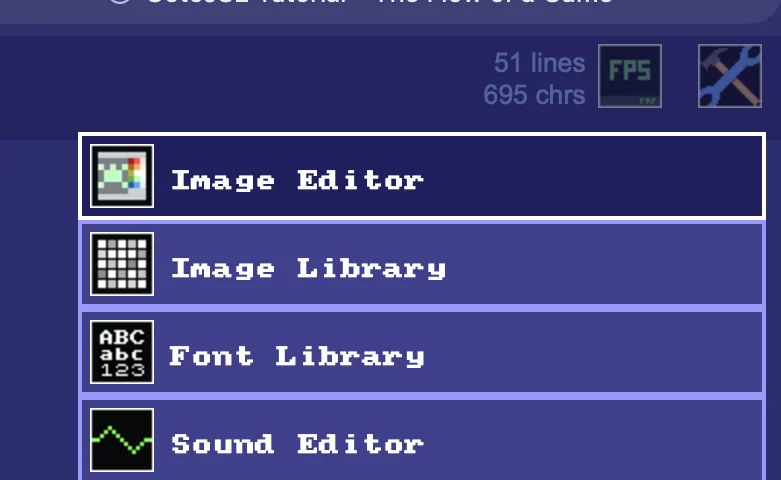
The Image editor can be found in the Tools menu, on the top right of the main GotoJSE Gui.
Let's draw our first sprite!
Using the Editor
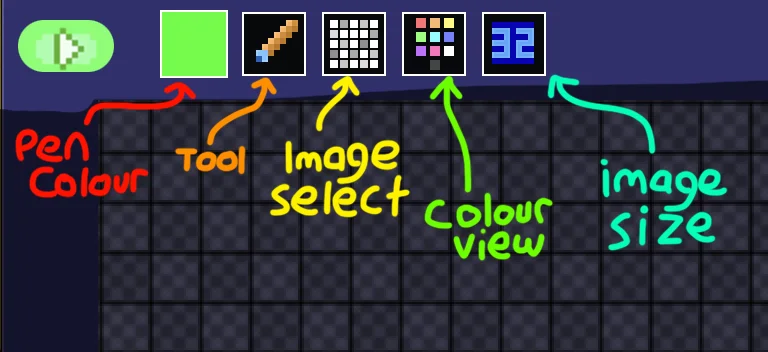
A simple enough GUI.
Across the top we have the colour picker, the tool select, an image select, a colour viewer (?) and the size of our image.
Images can be 8x8, 16x16 or 32x32.
For now, grab a nice green colour from the colour picker, and draw yourself something that looks a bit like a Space Invader.
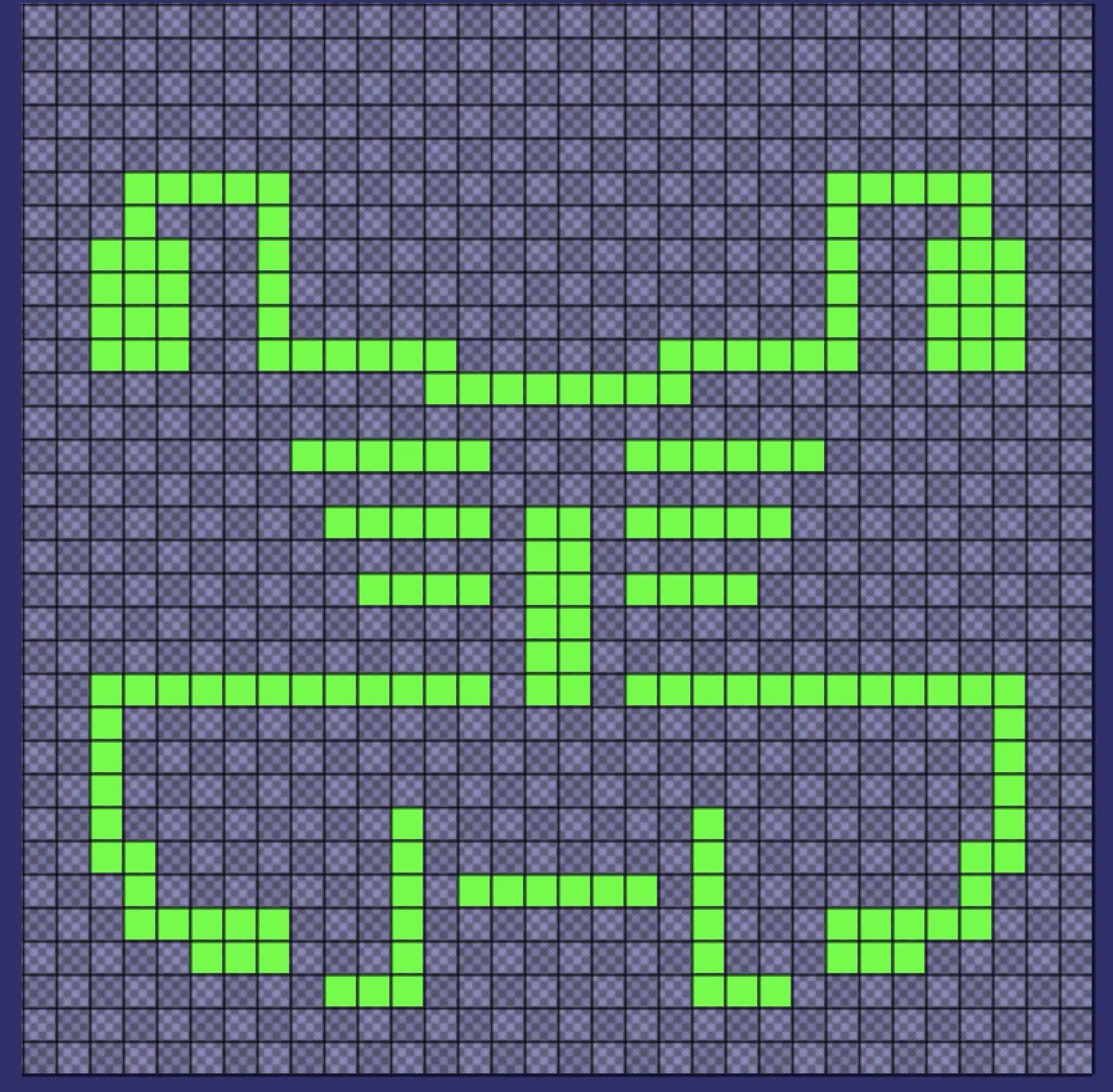
Looks a bit Invader'ish!
Once you're happy with your invader, head to the top right of the GUI, click the disk, and Save.
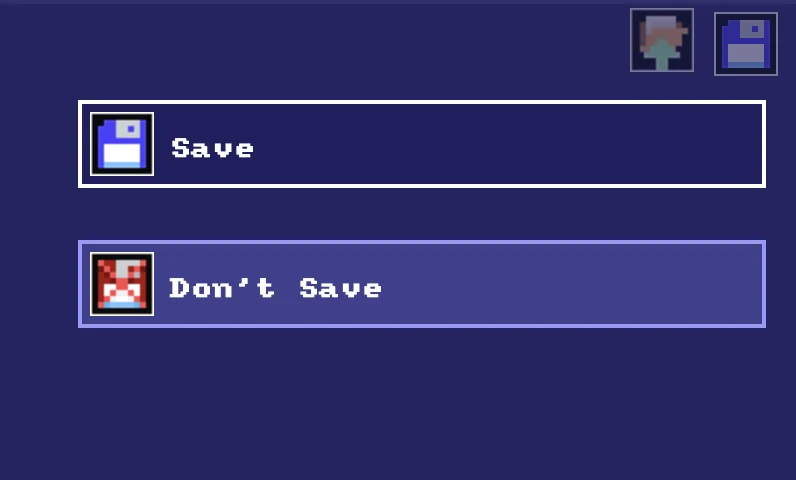
Click Save.. Don't click "Don't Save"!
Symbol Data!
Once you return to the code, you should find that GotoJSE has placed a line of cryptic data near the top of your program.
Symbol 0,"2__0_0_0_0_0_0_0_0_0_0_0_0_0_0_0_0_0_0_0P?0_0/P?0!P0,P0_0/P0,P0?P,00P0_0/P00P,0.P,00P0_0/P00P,0.P,00P0_0/P00P,0.P,00P!0!P!00P,0_0?P@0_0_0_0_0_0/P!0.P!0_0_0_0_0_0.P?0PP0P?0_0_0!PP0_0_0/P.0PP0P.0_0_0/PP0_0_0_0,PP0_0@P_P,0PP0P_P,0.P0_0_0@P0.P0_0_0@P0.P0_0_0@P0.P0@P0@P0@P0.PP0/P0@P0/PP0?P0/P0P!0P0/P0!P?0,P0@P0,P?0@P,0,P0@P0,P,0_0?P,0@P,";
Symbol isn't a command that we'll ever write ourselves. GotoJSE's Image generator makes it for us.
It's computer data which represents the image that we just drew, but inside our program's code.
By having it here at the start of our program we don't need to do any loading or saving, or complicated file handling. It just "is".
GotoJSE will read that command, understand that it's an image, and will do everything that it needs to do so that we can simply use the image in our program.
All we have to do is use the DrawImg command (short for Draw Image) to tell it where to draw our image.
Drawing the Symbol
Let's head into the .StartScreen subroutine, and add a DrawImg command.
  DrawImg 320,160,0
  // DrawImg X, Y, Symbol Number
  // The middle of the image will be at X, Y
You can place this anywhere inside the StartScreen subroutine section, since nothing is overlapping.
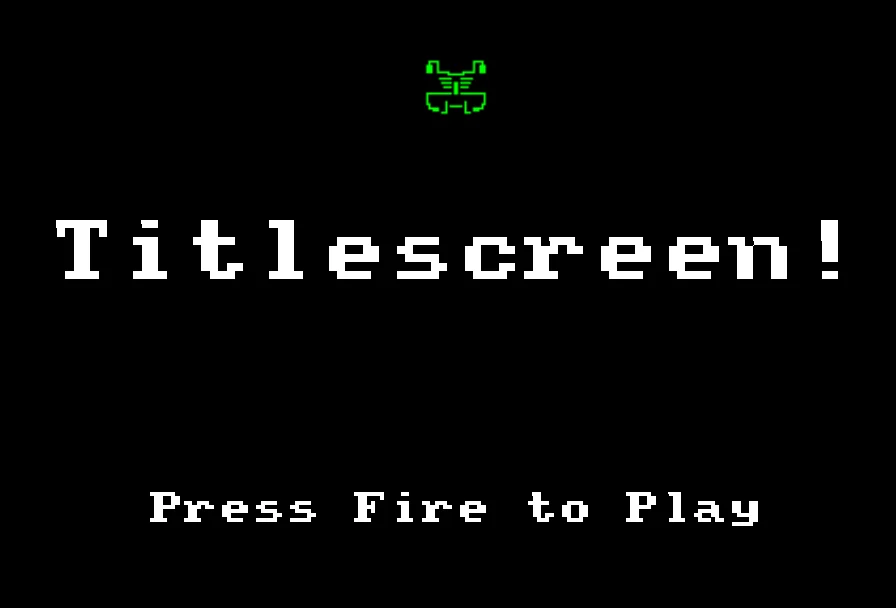
A Title screen with a logo!
Imagine it like a piece of paper or canvas and some paint. The last thing you paint will be on top.
The most recent thing is more visible.
Drawing More
Symbols run from 0 to 99.
The Symbol Number is the first value (before the comma) in the Symbol command, so we've currently only drawn Symbol 0.
Let's head into the editor and draw our second Symbol .. which will be number "1" (!)
Open the Image Editor, and in the Tools, select Copy.
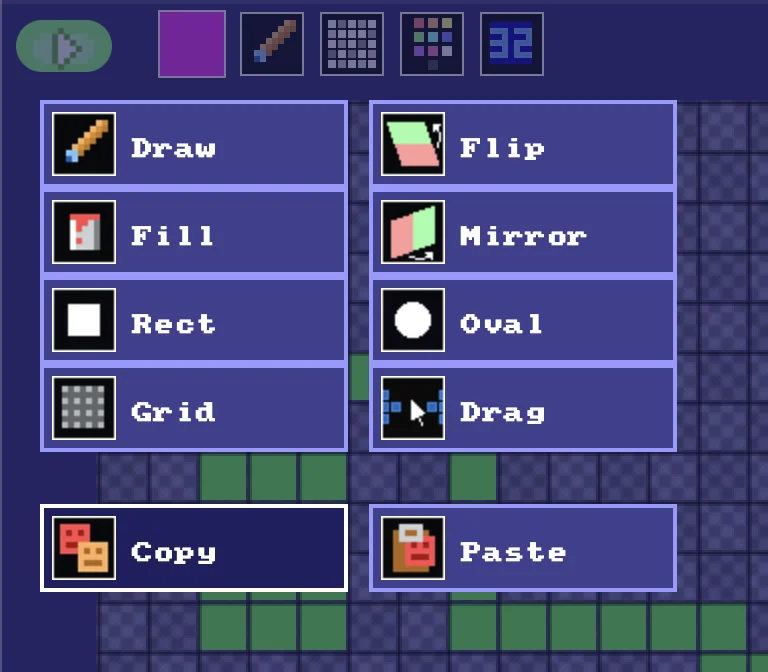
Copy
Use the Image Select, and choose the next "Sprite"
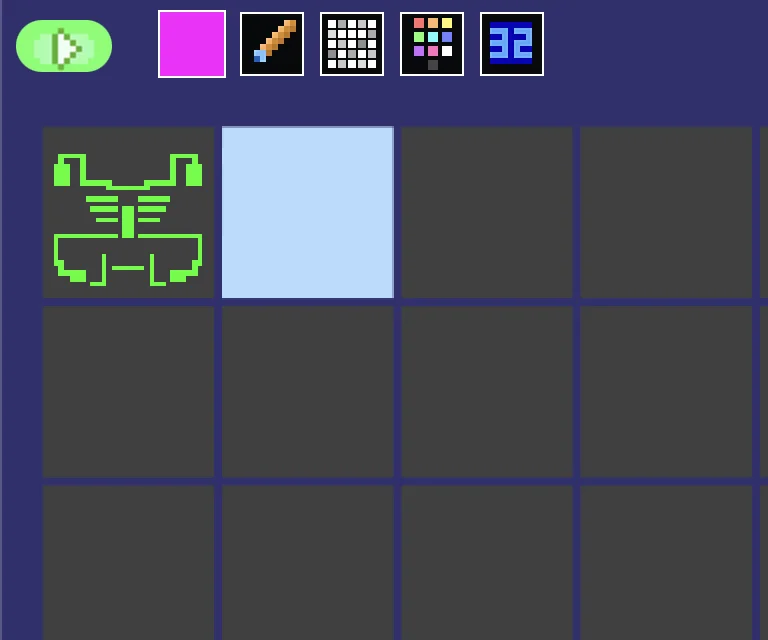
Change Symbol
Then Paste the image.
Tap "C" to Copy
The "]" key to move to the next sprite
Then "V" to Paste.
On Symbol #1, you can subtly edit this second symbol to make a little animation between the two symbols.
The "[" and "]" keys should be to the right of the "P" key on your keyboard.
Don't forget to "Save!"
Animating!!
Right, let's work out how we're going to animate our little invader on the title screen!
How about something simple like "Every 10 loops, change the image"
We could probably create a Loop=0, and Loop=Loop+1, counter. But thankfully, GotoJSE already has a "Frames" counter.
Every time your program uses the Flip command, GotoJSE automatically adds one to the Frames variable.
We can just use that!
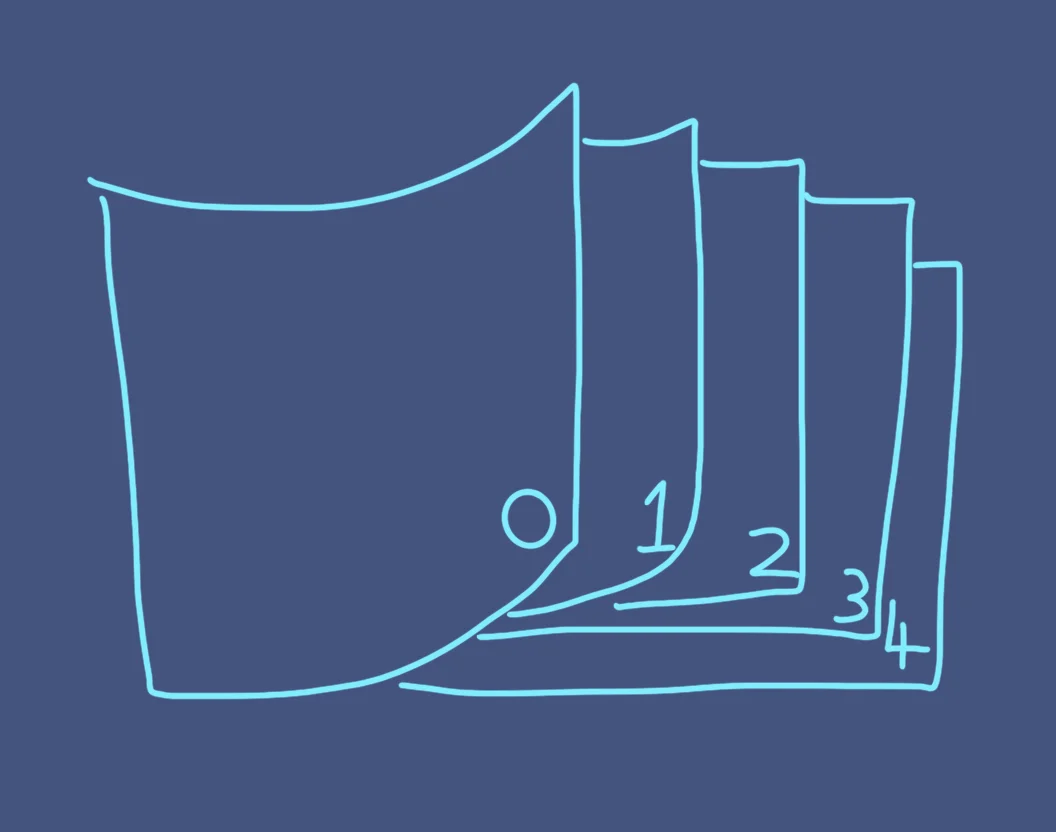
Each "Flip" counts as a new Frame.
Let's do a little "debugging" so you can see how this will work.
In the StartScreen, place a number up in the corner of the screen.
Print Frames
If we Wrap the Frames value between 0 and 20, we get a looping number.
Print Wrap(Frames,0,20)
// Wrap the number between 0 and 20
Now we have a number we can use for our animation!
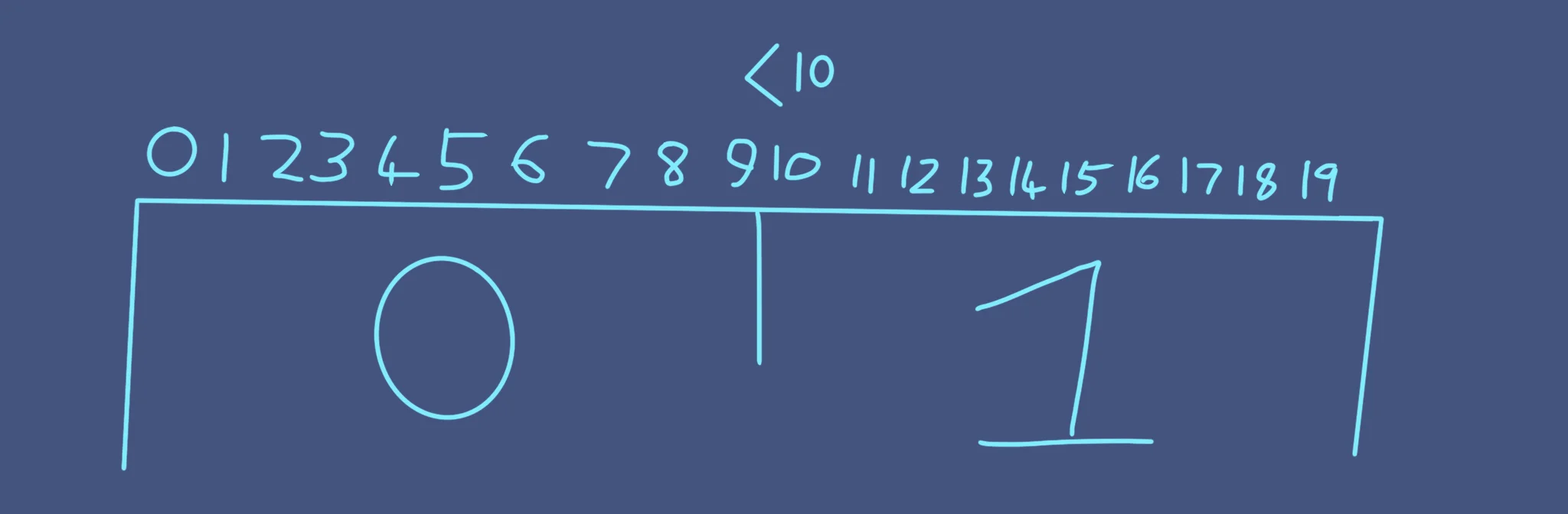
Default to 1, but set to 0 when Less than 10.
ShowInvader=1
if Wrap(Frames,0,20)<10 then ShowInvader=0
This will toggle the ShowInvader to either be 0 or 1, depending on the value of Frames.
We can change the DrawImg's symbol number to be this new ShowInvader variable.
  ShowInvader=1
  if Wrap(Frames,0,20)<10 then ShowInvader=0
  DrawImg 320,160,ShowInvader
Can you change the "framerate" of our Invader?
Try changing the 20 in Wrap(Frames,0,20) to see how it affects the animation speed.
What else might be invading?
You can draw anything in our Image Editor.
How about animating a cat, or a chicken?
Our complete code, so far.
// My Game
// by Mr Green
// Created 2025/12/16

Symbol 0,"2__0_0_0_0_0_0_0_0_0_0_0_0_0_0_0_0_0_0_0P?0_0/P?0!P0,P0_0/P0,P0?P,00P0_0/P00P,0.P,00P0_0/P00P,0.P,00P0_0/P00P,0.P,00P!0!P!00P,0_0?P@0_0_0_0_0_0/P!0.P!0_0_0_0_0_0.P?0PP0P?0_0_0!PP0_0_0/P.0PP0P.0_0_0/PP0_0_0_0,PP0_0@P_P,0PP0P_P,0.P0_0_0@P0.P0_0_0@P0.P0_0_0@P0.P0@P0@P0@P0.PP0/P0@P0/PP0?P0/P0P!0P0/P0!P?0,P0@P0,P?0@P,0,P0@P0,P,0_0?P,0@P,";
Symbol 1,"2__0_0_0_0_0_0_0_0_0_0_0_0_0_0_00P,0_0_0@P_P,0_0?P_P,0?P0_0?P0?P,0@P0_0?P0_0/P0_0?P0_0/P?0!P?0_0_00P0!P0_0_0!P@0_0_0_0_0_0/P!0.P!0_0_0_0_0_0.P?0PP0P?0_0_0!PP0_0_0/P.0PP0P.0_0_0/PP0_0_0_0,PP0_0!P_P?0PP0P_P!0_0_0_0,PP0_0_0_0,PP0_0_0_0,PP0_0P0@P0_0PP0_0P0@P0_0PP0_0P0P!0P0_0PP0_0P0P0.P0P0_0PP0_0P0P0.P0P0_0P,0/P,0P!0P,0/P.0_0_0_0P.0_0_0_0PP";


// Main Loop
GameRun=0
Repeat
  If GameRun==0 then Gosub .StartScreen
  If GameRun==1 then Gosub .InGame
Flip
Forever


// This is our Titlescreen
.StartScreen
CLS
ResetDraw

  ShowInvader=1
  if Wrap(Frames,0,20)<10 then ShowInvader=0
  DrawImg 320,160,ShowInvader

  SetFontSize 32
  Text 320,240,"Titlescreen!",1
  SetFontSize 16
  Text 320,360,"Press Fire to Play",1

  If GamePad(ButtonA)
    Gosub StartGame
    GameRun=1
  Endif

Return


// This prepares our game when the A Button is hit
.StartGame
Score=0

Return


// This is our ingame loop
.InGame
CLS
ResetDraw

  SetFontSize 32
  Text 320,240,"Ingame!",1

  If GamePad(ButtonStart) then GameRun=0
    // We can hit the Return key to quit

  SetFontSize 16
  Text 320,16,Score,1
Return