The Flow of a Game
Where Do We Goto, Today?
It's time to introduce the Goto command!
First we define a Label, by writing a word with a dot at the start.
.LabelA
A label is a jumping point.
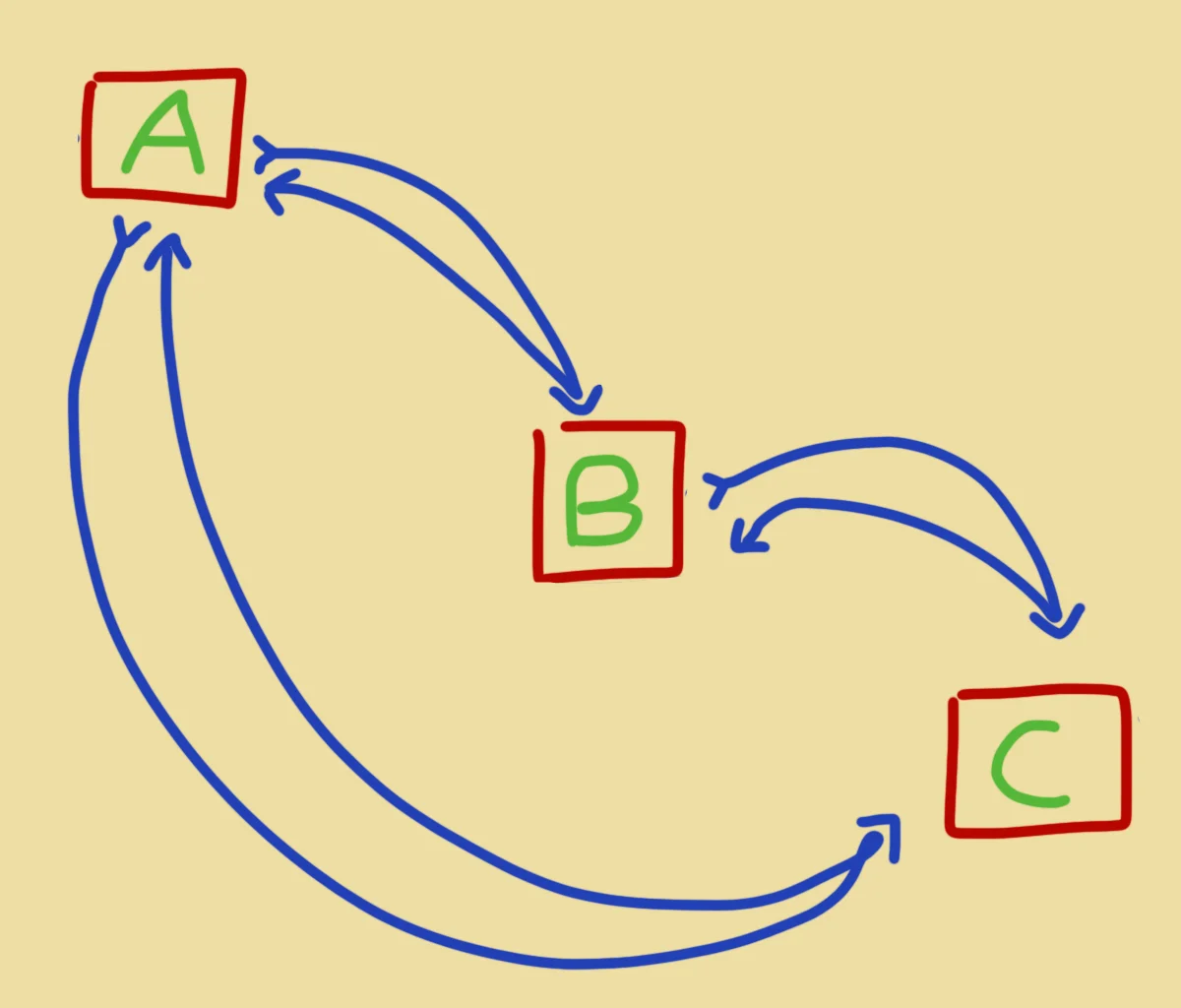
Any time we want to Go To this point in our program, we can simply use Goto .LabelA
Think of this like a link in your browser. You click the link, you Goto the place that the link is pointing to.
Well, GotoJSE can similarly jump to other points in the program by telling it to Goto a .Label.
.LabelA
  Print "Label A"
  Wait 1 // Wait for a second
Goto .LabelC

.LabelB
  Print "This is Label B"
  Wait 0.5  // Wait for half a second
Goto .LabelA

.LabelC
  Print "Gosh, Label C"
  Wait 2  // Wait for 2 seconds
Goto .LabelB
Where Are We?
Although the Goto command is good for leaping through the code, it does have one very important drawback.
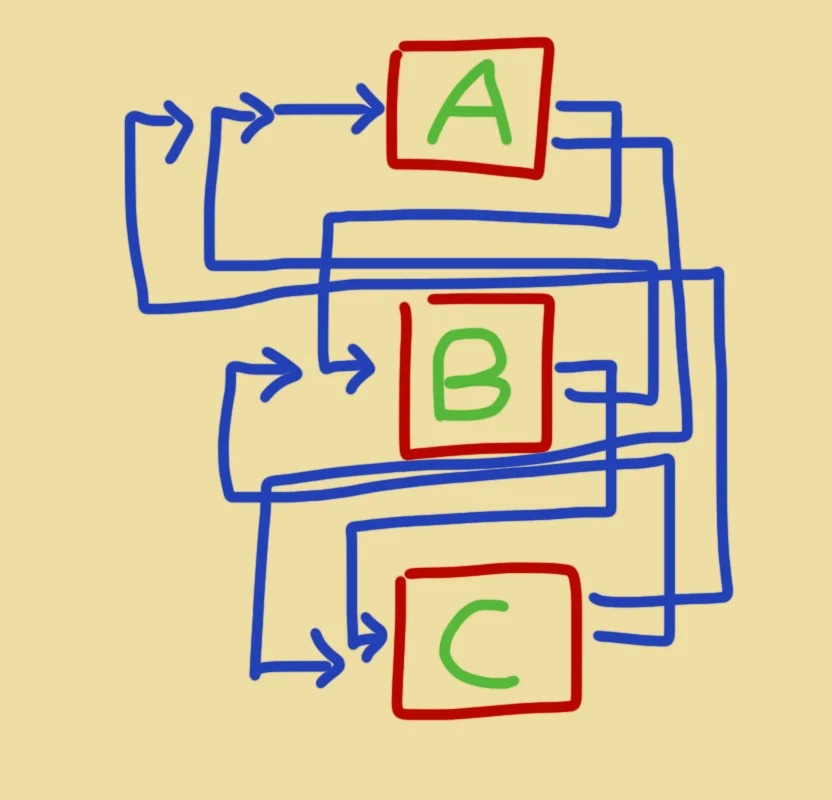
It all becomes a mess, very quickly.
You click into an article, read a bit of it, click another link, read some more and click, click and click again.
Each time, you Goto a new link, you lose track of where you've been.
It becomes a crazy maze of links and articles and it's really hard to go back in this scenario.
What we really need is a "Back" button.
Gosub a Subroutine
As useful as Goto can sometimes be, a much more useful command is Gosub.
A Gosub command will still jump to a .Label, but as soon as it meets the Return command, the program will jump back to where it was, just after the Gosub.
This works like our browser's Back button.
With this, we can neaten up our program a lot.
We can hop in and out, jump to labels, but always come back to where we were.
This helps to keep our main loop neat and tidy by simply letting us jump in and out of the Subroutines, instead of having all of the messy code inside the main loop.
Return
// Main Loop
Repeat
CLS
  // Just a single command, now!

  Gosub .DrawMyGrid
  // This jumps to the Grid Drawing routine

Flip
Forever


.DrawMyGrid
// The first Gosub jumps to this subroutine
//  which does the nested loop

  For X=1 to 10
  For Y=1 to 10
    Gosub .DrawMyStar
    // This jumps to the DrawMyStar routine
  Next
  Next

// and then returns to the main loop
Return


.DrawMyStar
// The nested loop jumps to this subroutine
//  which draws a single star

  DrawX=X*48
  DrawY=Y*48-24
  SetCol X*25,Y*25,255
  Star DrawX,DrawY,32,16

// and then returns to the nested for loop
Return
Now when we look at our main loop, we only use the single Gosub .DrawMyGrid, and everything else slots into place.
In GotoJSE, you'll rarely need it.
Gosub and proper loops tend to handle almost everything better.
Game Loop
Let's work out a plan going ahead.
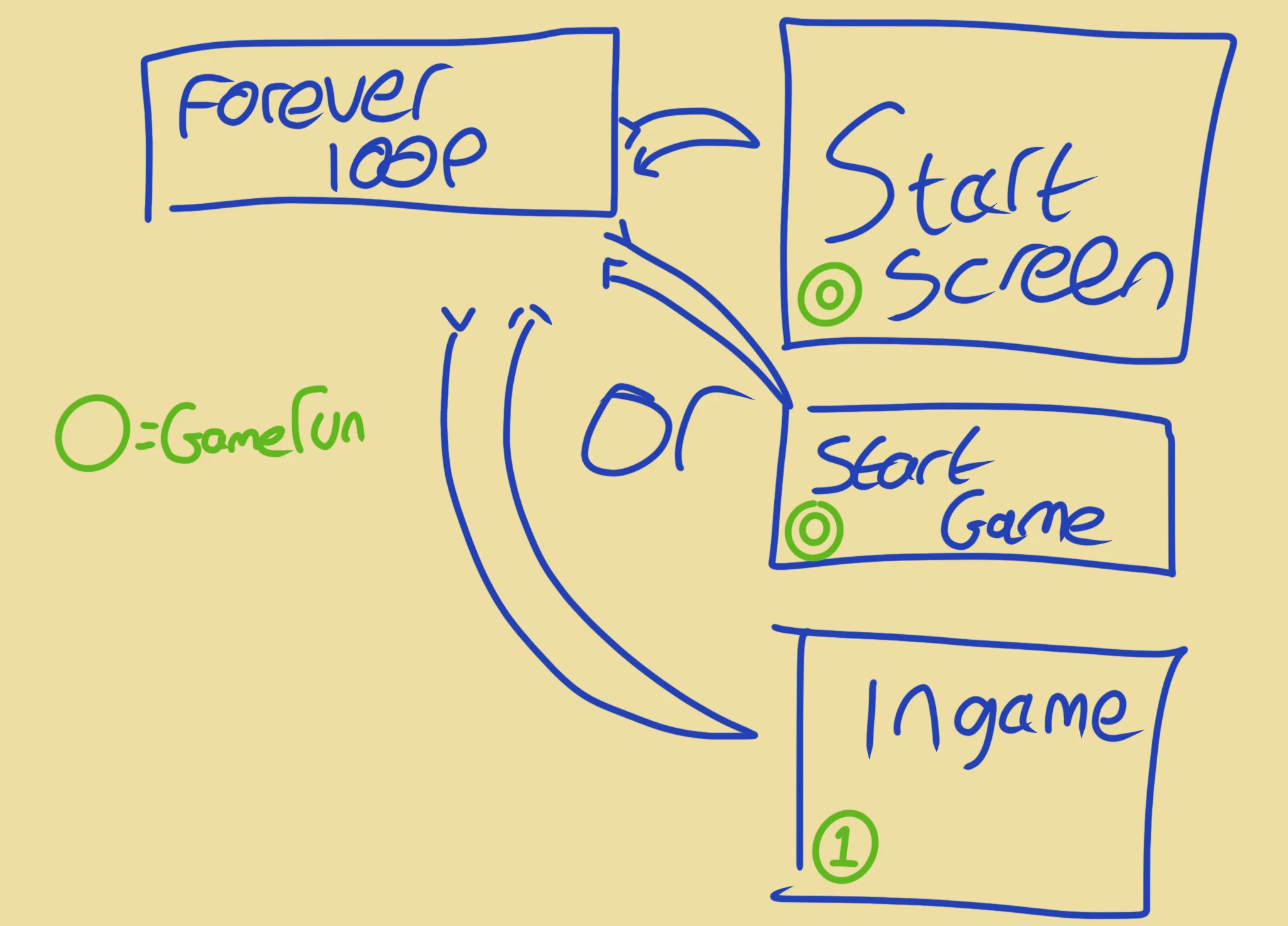
We'll have a constant loop. This will be our "Hub".
We need a Start Screen which shows the title, and if the player hits the Start Button then it Starts the game!
Then we'll jump to a "Start Game" Subroutine, which sets up all our variables.
And then once that's happened, we switch to jumping to the "Ingame" Subroutine.
Jumps!
Start vs Ingame
// My Game
// by Mr Green
// Created 2025/12/16

// ^ This nice commented section
//   gives credit to the author.
//   It also makes it easier to find
//   our program in the Project list.

// Main Loop
GameRun=0
Repeat
  If GameRun==0 then Gosub .StartScreen
  If GameRun==1 then Gosub .InGame
Flip
Forever


// This is our Titlescreen
.StartScreen
CLS
ResetDraw

  SetFontSize 32
  Text 320,240,"Titlescreen!",1
  SetFontSize 16
  Text 320,360,"Press Fire to Play",1

  If GamePad(ButtonA)
    Gosub StartGame
    GameRun=1
  Endif
Return


// This prepares our game when the A Button is hit
.StartGame
Score=0

Return


// This is our ingame loop
.InGame
CLS
ResetDraw

  SetFontSize 32
  Text 320,240,"Ingame!",1

  If GamePad(ButtonStart) then GameRun=0
    // We can hit the Return key to quit

  SetFontSize 16
  Text 320,16,Score,1
Return
We've set up a GameRun variable, and based on that we either jump to StartScreen or InGame.
StartScreen prints the title, and lets you press ButtonA, which jumps to StartGame to set up everything for the game.
InGame will be where we put our game.
In this Jumping-Puzzle, you're only allowed to change the numbers in the Write commands.
Can you fix the program so that it writes the numbers 1,2,3,4,5,6 in order, instead of the jumbled mess that it's currently in?
.PartA
  Write "1  "
Goto .PartC


.PartB
  Write "2  "
Goto .PartD


.PartC
  Write "3  "
Goto .PartE


.PartD
  Write "4  "
Goto .PartF


.PartE
  Write "5  "
Goto .PartB


.PartF
  Write "6  "
Flip
Wait 0.5 // Wait half a second
Goto .PartA