Welcome to GotoJSE
Hello World
My name's Mister Green, and I'll be here to guide you through your coding adventure.
Each chapter in our tutorial will teach you a new set of Commands that you can use in GotoJSE.
Let's learn, together!
GotoJSE is a form of BASIC, which is a language we can use to tell a computer what we'd like it to do.
We can use commands to tell the computer what we'd like, and how we want it to do what we'd like.
You might tell your dog to "sit". Sit would be a command.
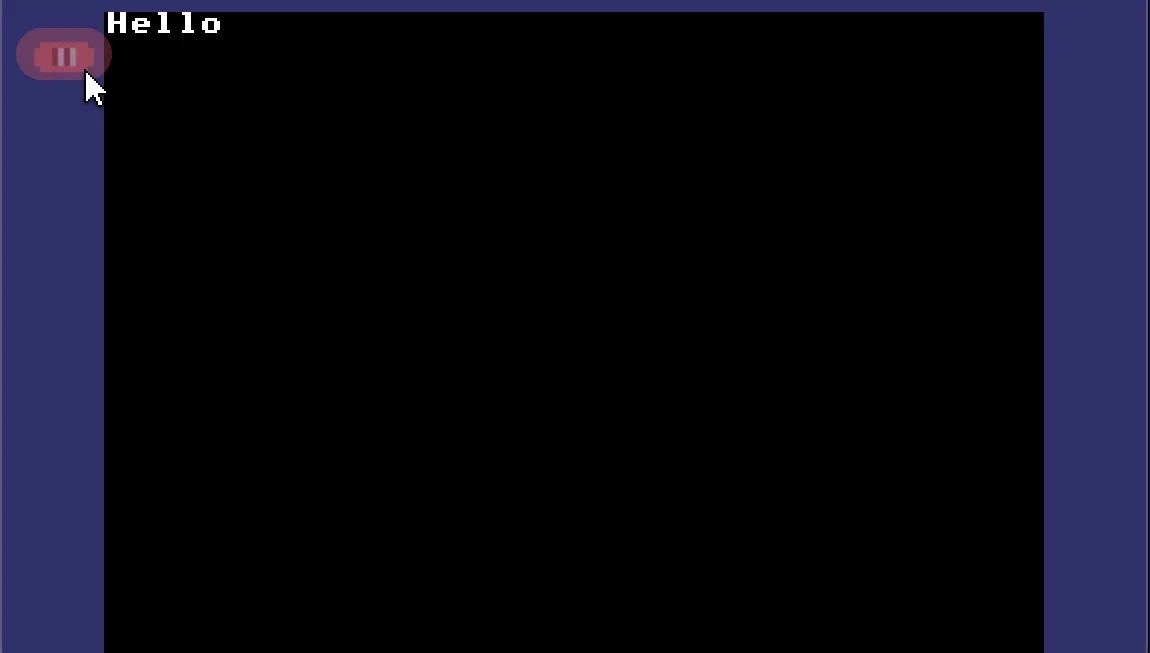
Here, we use the command Print, along with the word "Hello", to tell the computer to print the word Hello onto the screen.
Print "Hello"
A program is built out of commands, like a house is built out of bricks.
We can build up a program using commands until it becomes a game.
During the course of this tutorial, we'll be learning a lot of these commands and how to use them.
We'll also be learning how to use the language, and hopefully making some interesting games along the way.
We use Speech-Marks to tell the computer "These are the words that you should print onto the screen."
Run
Whenever you see a program in the tutorial, you can click on the "GotoJSE" button to open the programs inside the editor, or the "Copy" button to simply copy the program into your computer's memory.
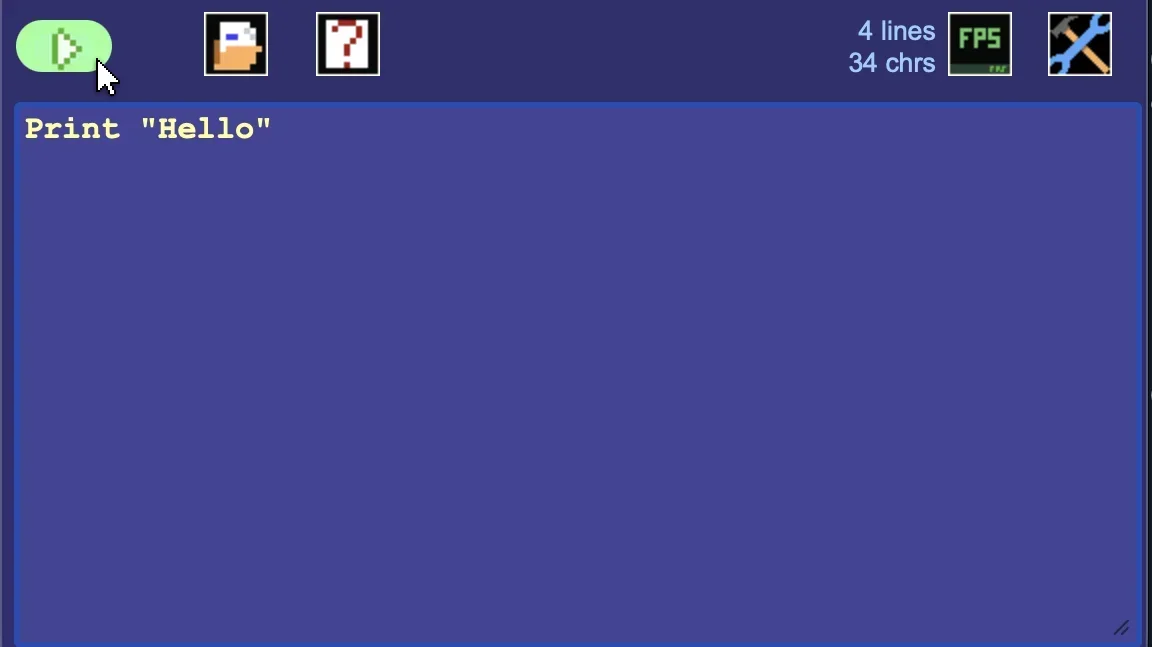
Click Green to Go!
There's a little green run button on the top of the GotoJSE screen, which you can use to run the programs that are written in the box.
Click Red to Stop!
Once the program's running, you can click the red Stop button to go back to the program screen.
Print or Write?
In GotoJSE we can either use Print or Write to get the computer to print things onto the screen.
// Print on each line
Print "Hello there."
Print "These lines of text,"
Print "Are on their own line."

// Placing "//" at the start of a line
// tells the computer to ignore the line.

// Write next to each other
Write "These lines "
Write "of text "
Write "fit together."
The Print command will move to the next line, at the end of the printed words.
Write will instead write words next to each other, and then continue on the same line.
Printing Other Things
We can use the Print or Write commands to print other things on the screen as well.
Print "    *"
Print "   ***"
Print "  *****"
Print " *******"
Print "    |"
Print "   [ ]"
The Print command can draw symbols or numbers, too.
It can even do maths for us.
Print 1 + 2
Print 5 * 10
Print 7 - 2
We'll learn to make good use of these commands over time.
Try to finish off this program so that it tells people about you when you click the run button.
Print "My name is -----"
Print "I am -- years old"
Print "My favourite colour is -----"
Print "My favourite pet is -----"
Here's a happy little diamond!
Print " * "
Print "***"
Print " * "
Try to fix this program so that it prints a larger diamond on the screen.
Print "*"
Print "***"
Print "*****"
Print "*******"
Print "*****"
Print "***"
Print "*"