Mystify Your Mind
More Lines
So, we've drawn Pins and Strings. Let's draw a different set of lines.
This time, we'll animate them, and bounce them around the screen like the Mystify screensaver of old.
We'll need to create two points on the screen and draw a line between them.
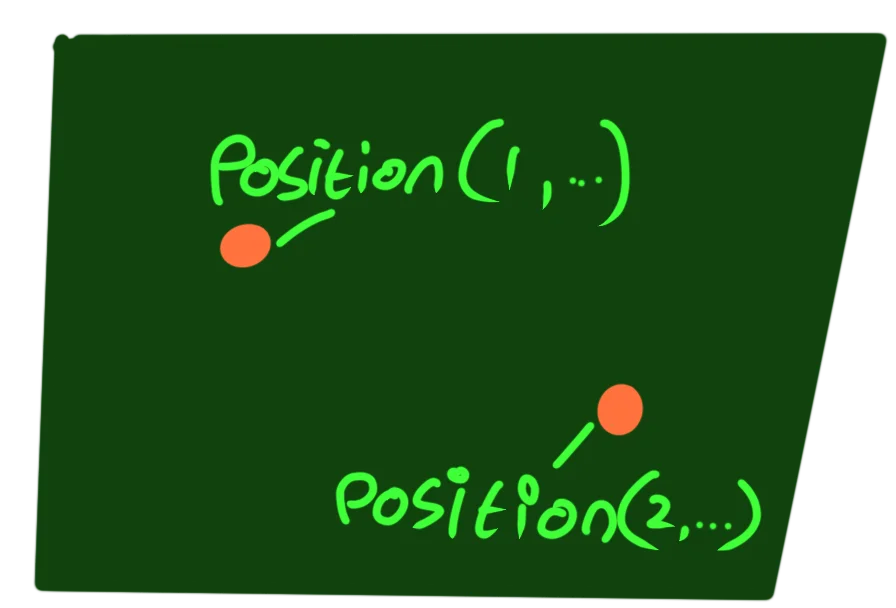
Little bouncing balls!
For each "position" we need an X and Y value, and then we'll also include speeds that the positions should move in.
If the position hits the edge of a screen, we'll reverse the direction of its movement speed, so it always ends up bouncing back onto the screen.
The Array
Let's start with that array, then.
// Set up the Array for two positions
Dim Position(2,4)

// And the Array slot names
Pos_X=1
Pos_Y=2
Pos_X_Move=3
Pos_Y_Move=4
And from there we'll also make some random positions and default movements for each position.
// Set up the initial positions
  // and movement speed
For n=1 to 2
  // Give a random position on the screen
  Position(n,Pos_X)=Rand(0,640)
  Position(n,Pos_Y)=Rand(0,480)

  // And make it move towards the bottom right of the screen
  Position(n,Pos_X_Move)=2
  Position(n,Pos_Y_Move)=2
Next
Ready for bouncing?
Basic Drawing
We should start with a normal Repeat-Forever loop, not forgetting our CLS, ResetDraw and Flip to keep the frames flowing well.
Repeat
CLS  // Clear the screen
ResetDraw  // Reset drawing


Flip  // Flip the "Flipbook"
Forever
And inside this main loop, we can create a simple drawing loop.
For n=1 to 2
  // Draw balls at the Position
  X=Position(n,Pos_X)
  Y=Position(n,Pos_Y)
  Oval X,Y,8,8
Next
Let's fix that.
Basic movement is as simple as adding the value in the Pos_X_Move slot to the Pos_X slot, and the same for the Pos_Y
  // Move each position
  Position(n,Pos_X)=Position(n,Pos_X)+Position(n,Pos_X_Move)
  Position(n,Pos_Y)=Position(n,Pos_Y)+Position(n,Pos_Y_Move)
The problem is, however, they eventually move off the screen.
Movement
We need to add a bit of logic to bounce values when they hit an edge.
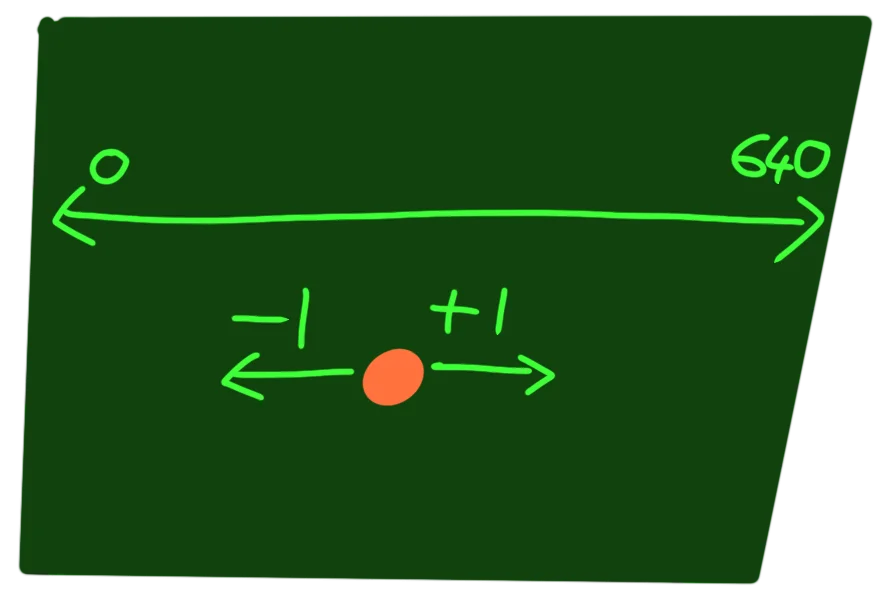
Movement and Limits
If the position's X value is bigger than the screen's 640 pixel width, we change the Movement so it's a negative (minus) number.
Since we're adding the Movement to the Position each loop, Negative numbers will reduce the X value.
That way the X will decrease, and end up back inside the screen.
Similarly, if the X position is lower than 0, we change the movement to a positive number, so it adds back and moves towards the right.
  // Bouncing the X position
  If Position(n,Pos_X)>640 then Position(n,Pos_X_Move)=-Rand(2,4)
  If Position(n,Pos_X)<0 then Position(n,Pos_X_Move)=Rand(2,4)
We've given the new Movement speed a random value, to make things move interesting when the position bounces.
We should also do the same for the Y position, too.
  // And the same for the Y position
  If Position(n,Pos_Y)>480 then Position(n,Pos_Y_Move)=-Rand(2,4)
  If Position(n,Pos_Y)<0 then Position(n,Pos_Y_Move)=Rand(2,4)
Now we're bouncing!
Adding Lines
It's time to connect the dots, just like we did with the Pins and String.
  LastX=Position(n-1,Pos_X)
  LastY=Position(n-1,Pos_Y)
  Line X,Y,LastX,LastY
We find the previous Position, and draw lines from the current Position to the last one.
If you try it like this, you'll find there's a mysterious "first" line that points to the top left of the screen.
That's because Position One is trying to draw towards Position Zero, and we haven't made a Position Zero.
We should probably, then, only draw the lines if n is bigger than 1.
Let's tweak that last line.
If n>1 then Line X,Y,LastX,LastY
There we go!
Mystifying
One fun thing that JSE can do is retaining the previous "flip".
Currently we use CLS to clear the screen, and we know that if we don't use CLS, the screen never clears at all.
But what if we "half" clear the screen each time.
We can give CLS a colour. We've previously used this to change the background to a light blue colour.
This time, we'll stick with a dark colour, but also add a low Transparency (Alpha) value so that, instead of completely clearing the screen, the CLS acts like a sheet of transparent paper.
Let's change the CLS command in our program.
CLS 0,20,40,0.2
  // Instead of clearing with black,
  // clear with a dark blue colour.
  // but also make it transparent,
  // so we can see the previous few frames.
Now when we run the program, you'll see a curious trail left behind our line!
Our Code
// Mystifying
// by Mr Green
// Created 2026/1/20


// Set up the Array
Dim Position(2,4)

// And the Array slot names
Pos_X=1
Pos_Y=2
Pos_X_Move=3
Pos_Y_Move=4

// Set up the initial positions
  // and movement speed
For n=1 to 2
  // Give a random position on the screen
  Position(n,Pos_X)=Rand(0,640)
  Position(n,Pos_Y)=Rand(0,480)

  // And make it move towards the bottom right of the screen
  Position(n,Pos_X_Move)=2
  Position(n,Pos_Y_Move)=2
Next


Repeat
CLS 0,20,40,0.2
  // Instead of clearing with black,
  // clear with a dark blue colour.
  // but also make it transparent,
  // so we can see the previous few frames.

ResetDraw  // Reset drawing


For n=1 to 2
  // Move each position
  Position(n,Pos_X)=Position(n,Pos_X)+Position(n,Pos_X_Move)
  Position(n,Pos_Y)=Position(n,Pos_Y)+Position(n,Pos_Y_Move)

  // Bouncing the X position
  If Position(n,Pos_X)>640 then Position(n,Pos_X_Move)=-Rand(2,4)
  If Position(n,Pos_X)<0 then Position(n,Pos_X_Move)=Rand(2,4)

  // And the same for the Y position
  If Position(n,Pos_Y)>480 then Position(n,Pos_Y_Move)=-Rand(2,4)
  If Position(n,Pos_Y)<0 then Position(n,Pos_Y_Move)=Rand(2,4)

  X=Position(n,Pos_X)
  Y=Position(n,Pos_Y)

  LastX=Position(n-1,Pos_X)
  LastY=Position(n-1,Pos_Y)
  If n>1 then Line X,Y,LastX,LastY
Next


Flip  // Flip the "Flipbook"
Forever
More Color!
What different ways can you come up with to draw the lines in different colours?

Colourful Lines
More Lines!
Can you change the code so that it works with more lines at once?
Hint : Use a variable (MaximumPositions) instead of specifying the number 2, for the Array size, and all the loops.

Additional Lines
Mirror!
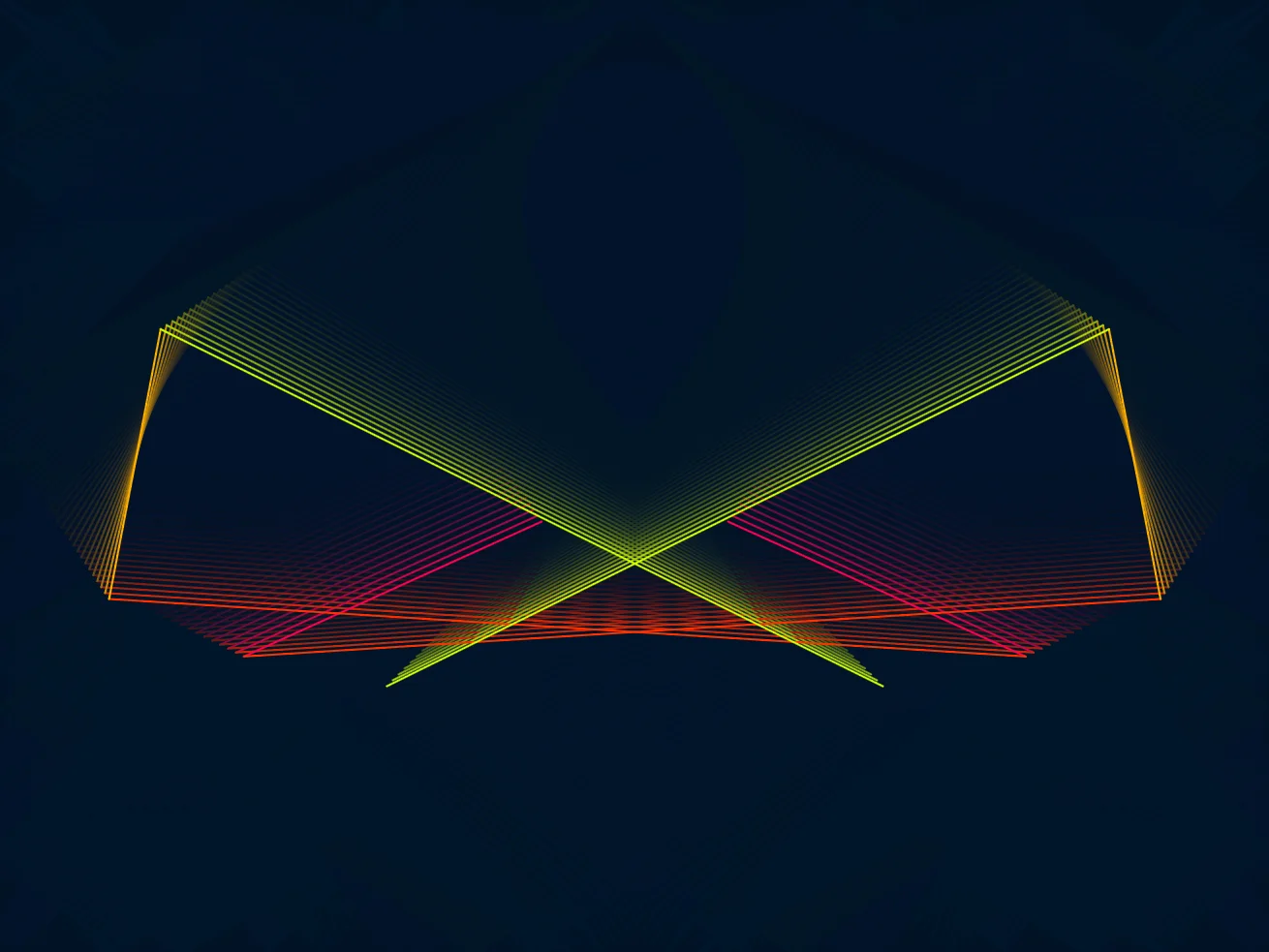
Can you draw a mirror image of the lines being drawn?
Hint : The screen width is 640! Subtract all your values from there, to "flip" them from left to right.
Mirrored Lines